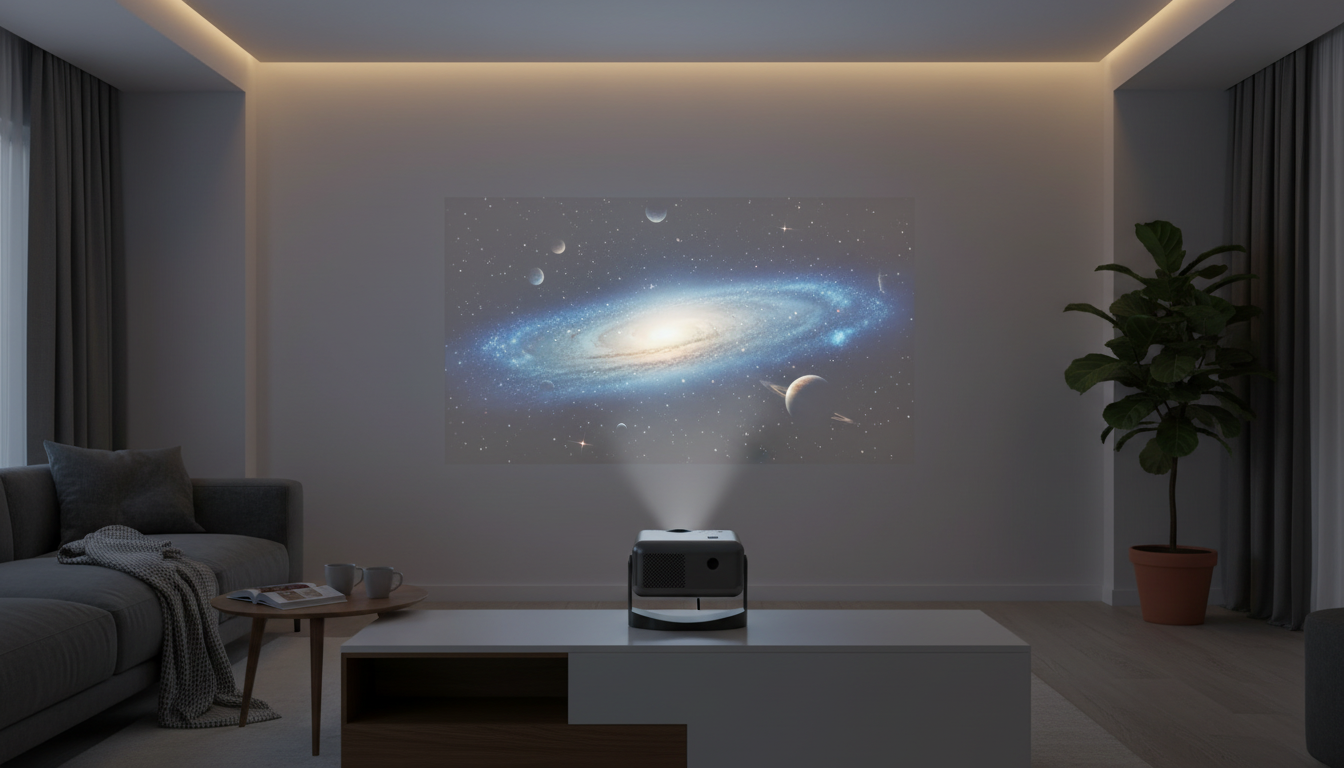
A compact projector can turn a bedroom wall, living room, or backyard screen into a movie-ready space without complicated wiring. This guide focuses on what makes daily use feel easy—quick image setup, reliable streaming, better sound, flexible placement, and simple care—so big-screen nights happen more often and with less effort.
For most homes, the best projector isn’t the one with the most complicated settings—it’s the one that gets a clear picture quickly and fits the way people actually watch. A portable design makes it simple to move from the living room to a bedroom, or to pack for a trip. Auto focus reduces the usual “step forward, step back, adjust again” routine after changing distance or angle.
Bluetooth support opens the door to fuller sound by pairing a speaker or headphones, which is especially helpful if you want movie dialogue to feel more present than typical small built-in drivers can deliver. An Android 11 environment also keeps the setup clean: for many households, streaming can happen directly on the projector without adding a separate device. And with 360° viewing flexibility, placement can be more creative—shelves, side tables, or even a ceiling-friendly orientation for laid-back viewing.
This type of projector works best for casual home cinema, dorm rooms, kids’ rooms, and travel-friendly viewing. The standout priorities are convenience and versatility: wireless audio for simple sound upgrades, app-based playback through Android, and fast picture setup with auto focus.
| Feature | Why it matters | Practical tip |
|---|---|---|
| 4K support | Helps with sharper sources and modern streaming quality | Use high-quality content and a clean projection surface for the biggest visible improvement |
| Auto focus | Keeps the image clear after moving the projector | Re-run focus after changing the angle or distance |
| Bluetooth | Enables better sound via external speakers | Place the speaker close to the viewing area to reduce perceived delay |
| Android 11 | Runs streaming apps directly on the projector | Keep apps updated and ensure stable Wi‑Fi for smoother playback |
| Portable design | Easy to store, pack, and reposition | Use a stable surface or tripod/stand to avoid bumps during viewing |
A good projection surface does more than most people expect. A flat, light-colored wall can work well, but a dedicated screen (even an affordable pull-up or outdoor screen) often improves perceived contrast and uniformity. If the image ever looks “washed,” room lighting is usually the culprit—close curtains, dim lamps, and avoid direct sunlight on the wall or screen.
Try to keep the projector level and centered to reduce distortion. Small angle adjustments are fine, but extreme angles can make the picture look trapezoid-shaped and may reduce clarity at the edges. Auto focus tends to perform best when the projector is steady and the lens is clean, so wipe it gently before a big movie night.
If you’re chasing sharpness, resist the temptation to go huge right away. Start with a medium image size, then expand gradually. In many rooms, pushing for an oversized image at a long distance can make details appear softer, especially on textured walls.
If an app is missing or limited, using an external streamer via HDMI is a straightforward workaround, letting you stick with a preferred interface while still enjoying the large-screen experience. For general platform details, Android’s official overview is a helpful reference: Android 11 overview.
If your space has heavy wireless interference—busy apartments, lots of devices, or crowded Wi‑Fi channels—wired audio (when available) can be the simplest fix. For technical background on Bluetooth versions and capabilities, see the Bluetooth Core Specification.
For additional placement and sizing guidance, projector-focused resources can be useful, such as Projector Central.
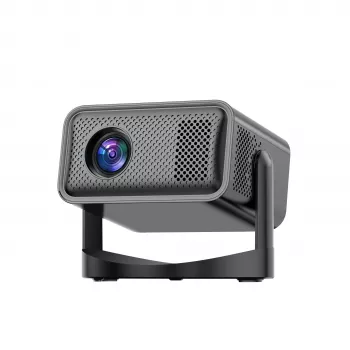
For an easy, single-box starter setup, the 4K Portable Home Projector with Auto Focus, Bluetooth, Android 11 & 360° Cinema combines portable projection, quick focus convenience, Bluetooth audio support, and built-in Android streaming for less device juggling.
If your setup is going into a main living area, pairing it with a stable media surface can keep accessories organized and make the room feel intentional. The Modern Nordic TV Stand and Storage Dresser is a strong option for storing remotes, cables, and streaming add-ons while keeping the space tidy.
Android 11 lets many streaming apps run directly on the projector, so a separate stick often isn’t necessary. A streaming stick can still be useful if a specific app isn’t supported or if you prefer a particular interface.
Bluetooth can introduce some latency, which may be more noticeable in games or fast dialogue scenes. If it happens, try lip-sync or audio delay settings in the app or device, or switch to wired audio when available.
Stabilize the projector, clean the lens, and re-run auto focus after any movement. Reducing image size, dimming ambient light, and using a smoother wall or dedicated screen can also make details look clearer.








Leave a comment